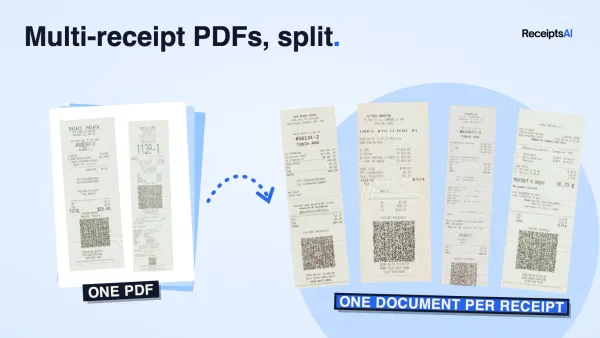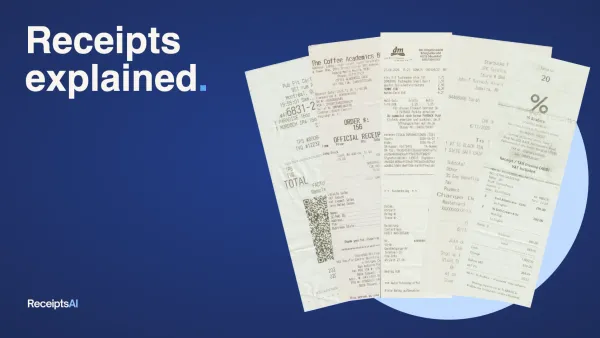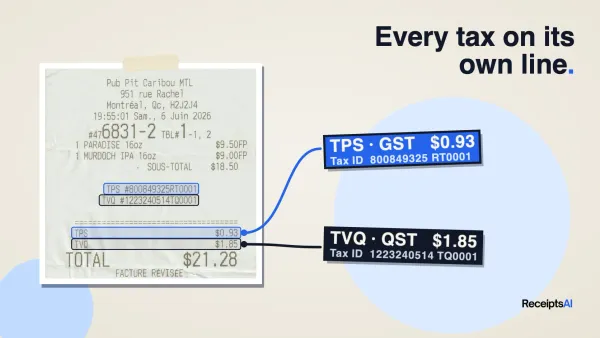
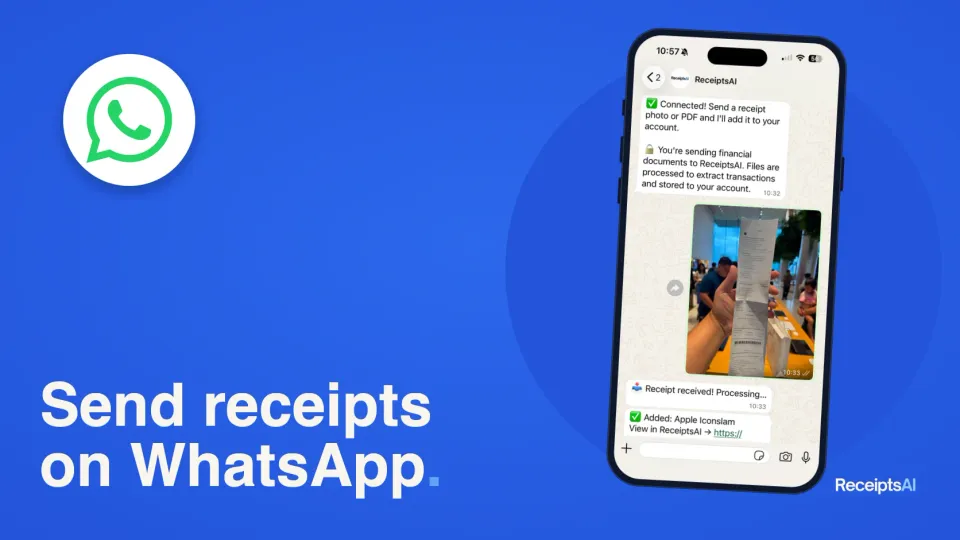

You can now send that receipt to ReceiptsAI on WhatsApp. We rolled it out quietly a few weeks ago, and it's become one of the quickest ways to get a receipt into your books. Take a photo, send it, and put the paper away. ReceiptsAI reads the merchant, date, and total, files the receipt in your workspace, and replies in the chat to confirm it's done.
No new app to install, and nothing to remember at the end of the month.
How it works
Setup takes about a minute, and you only do it once.
- Connect WhatsApp. In ReceiptsAI, open Sources → WhatsApp and click Connect WhatsApp. Then click Open WhatsApp: it opens a chat with the ReceiptsAI number, with a one-time code already typed in. Press Send, and the app page switches to connected on its own.
- Send a receipt. Take a photo of a receipt, or share a PDF invoice, and send it to the ReceiptsAI chat.
- Get the confirmation. ReceiptsAI replies "Receipt received! Processing…" and then "Added: [merchant]", with a link to view it in the app.
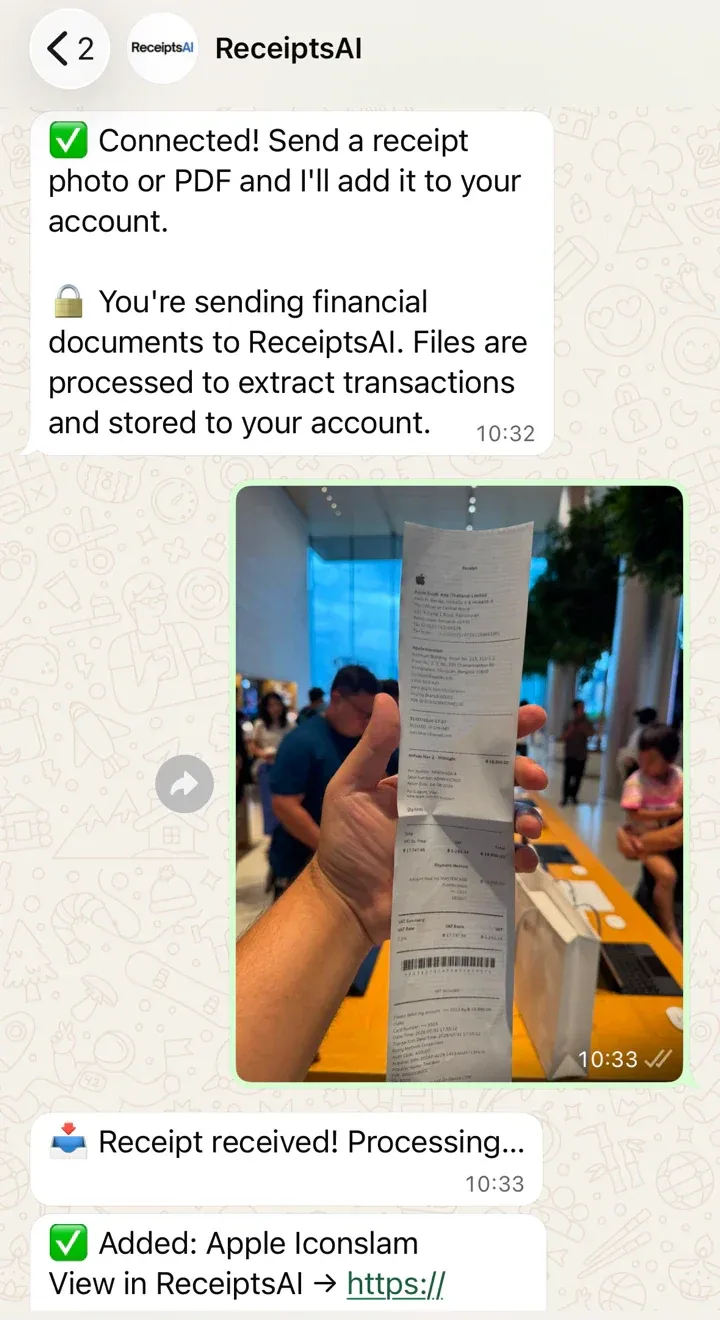
From there it's a normal ReceiptsAI document. It goes through the same extraction as an upload, picks up your categories and rules, and shows up in your reports and exports.
What you can send
- Photos of paper receipts, taken right there or picked from your camera roll. Old receipts work as well as new ones.
- PDF receipts and invoices, forwarded from email or saved to your phone.
- Several at once. Select a batch of photos and send them together. You get one confirmation, and each receipt is processed separately.
- Files up to 20 MB each.
For the best results, lay the receipt flat, fill the frame, and avoid strong shadows. If ReceiptsAI can't read something, it tells you in the chat and asks for a clearer photo or a PDF, so nothing disappears quietly.
Handy chat commands
Type / in the chat to see the menu:
/workspacechooses which workspace your uploads go to. Useful if you keep separate books for more than one business./recentshows your latest documents./statusshows how many documents were processed in the last 30 days./helplists everything the bot can do.
Bring your team along
On Premium+, employees can connect their own WhatsApp as collaborators. They send receipts from the field, and the receipts land in your shared workspace without the employee needing an app login or seeing your books. No more chasing receipts at month-end.
Private by design
You're sending financial documents, so the WhatsApp connection is locked down:
- Only your linked chat counts. A chat is connected with a one-time code you create in the app. Messages from any other chat are never added to anyone's account.
- No group chats. ReceiptsAI only accepts documents from a one-to-one chat, so a group can't accidentally feed receipts into your workspace.
- Same protections as the rest of ReceiptsAI. Documents are stored in your account with the same security as uploads and email forwarding. You can disconnect WhatsApp, or delete your data, at any time. See how we protect your data.
What it costs
WhatsApp upload is available on every plan, including Free. Each processed page uses one credit, exactly like uploading in the app or forwarding by email. New accounts start with 30 free credits and no credit card.
One place for every receipt
WhatsApp is the fastest route for paper receipts, but it's not the only one. Email receipts can go to your private ReceiptsAI inbox, either forwarded by hand or automatically with a one-time rule in Gmail, Outlook, or Zoho Mail. And you can always upload in the app. Whichever way a receipt arrives, it ends up in the same workspace, ready to export to Excel when your accountant asks.
FAQ
Do I need WhatsApp Business?
No. Your normal WhatsApp account works.
Can I send receipts I photographed earlier?
Yes. Pick them from your camera roll and send them, one at a time or as a batch.
What happens if ReceiptsAI can't read a receipt?
You'll get a message in the chat asking for a clearer photo or a PDF. If you're out of credits, it tells you that too.
Can I connect more than one phone?
Yes. Use Connect another device on the WhatsApp page in the app.
How do I disconnect?
Open Sources → WhatsApp in ReceiptsAI and click Disconnect.
Try it now
Open ReceiptsAI, go to Sources → WhatsApp, and send your first receipt. If you don't have an account yet, start for free with 30 credits, no card required.