
You've got the monthly PDF pile open, Excel is blank, and someone wants the numbers reconciled by morning. The trap is obvious, copy each line by hand and hope nothing shifts, or try a quick import and discover that the statement came in with broken rows, stray headers, and amounts that don't add up. A clean pdf bank statement to Excel workflow is really about getting structured transaction data into a workbook you can trust, then fixing the places where layout and scan quality try to break it.
Table of Contents
- Why Converting a PDF Bank Statement to Excel Matters
- Using Excel Power Query to Import a Digital PDF
- When OCR Is the Only Way for Scanned Statements
- Cleaning and Normalizing the Extracted Data
- Bulk Automation and When to Use a Dedicated Tool
- Troubleshooting the Most Common Conversion Errors
- Security Best Practices and Your Final Workflow
Why Converting a PDF Bank Statement to Excel Matters
A month-end close can stall on one bad statement. A bookkeeper copies transactions line by line, then spots a mismatch during reconciliation, then spends another hour hunting for the row that got shifted when a hidden header broke the paste. That's why this isn't just file conversion, it's a structured-data extraction problem built around reconciliation accuracy, not around opening a document in a spreadsheet.
Modern tools don't stop at reading a PDF. They can extract transactions, balances, dates, descriptions, and amounts, then export that data straight into Excel, CSV, QBO, or Xero-ready files. One vendor reports 99% conversion capability for PDF bank statements, and another reports an average processing time of 30 seconds per statement, which shows how far the workflow has moved from manual transcription to machine-assisted bookkeeping, with the source emphasis on faster, structured extraction from statements. DocuClipper's bank statement converter overview
What good output looks like
Good output isn't just “text in columns.” It's a workbook where each row represents one transaction, dates are usable by Excel, debit and credit values are separated cleanly, and the file can survive reconciliation without a human having to repair every other line. If opening balance, closing balance, and transaction detail don't tie out, the export still failed even if it looked tidy on screen.
For a deeper view of why that matters downstream, a practical bank reconciliation guide is worth keeping close while you work through statement imports. Reconciliation is the ultimate test, not the import button.
Using Excel Power Query to Import a Digital PDF
For digitally generated statements, Excel's native import is the cleanest first pass. The path is Data > Get Data > From File > From PDF, then you choose the statement and let Power Query inspect the file before it lands in the worksheet. Microsoft notes that this works best for non-scanned statements, because image-based PDFs usually need OCR first, and even selectable text can still be layout-sensitive when line breaks, merged cells, or hidden headers are present. Microsoft support discussion on importing PDF bank statements to Excel

The click path that actually works
Start with a blank workbook. In Excel, open Data, then Get Data, then From File, then From PDF. After you select the file, Excel opens the Navigator pane and shows the tables and pages it detected. That preview matters, because the wrong table often looks “close enough” until you notice the opening balance is sitting on page one while the transactions live on page three.
Choose the table that contains the transaction rows, not the page preview that includes the statement header. Then open Transform Data instead of loading immediately. That extra step gives you the chance to fix the fields before the damage is baked into the worksheet.
Practical rule: if the preview already looks misaligned, don't load it and “fix it later.” A bad load creates more cleanup than a careful transform.
Why the transform stage matters
Power Query is doing layout detection, not magic. A PDF can look perfect to your eye and still break into extra columns because a hidden header, a merged cell, or a wrapped description line confused the parser. The safest move is to normalize inside Power Query first, then load the finished table.
Typical cleanup in this stage includes changing date fields from text to date type, converting amount columns to decimals, and replacing nulls where needed before data enters the sheet. If you skip that, the workbook may open cleanly and still fail when you sort, filter, or reconcile.
When OCR Is the Only Way for Scanned Statements
If you can't highlight text in the PDF viewer, you're probably dealing with a scan. That's the dividing line. A digitally generated PDF contains a text layer Excel can read directly, while a scanned statement is just an image until OCR turns it into machine-readable text.
How to tell before you waste time
Try selecting a line of text in the PDF viewer. If the cursor behaves like you're dragging across a picture, not text, Excel's native import is unlikely to be enough. In that case, OCR is the bridge between the image and the spreadsheet.
OCR doesn't “convert a picture into perfect bookkeeping.” It reads the image and guesses the text structure, which means scan quality matters. Skewed pages, shadows, and low-resolution uploads all hurt downstream accuracy. A clean scan gives OCR less room to misread totals, dates, and minus signs.
Which OCR path to use
Excel can handle some OCR-based workflows, but it's still sensitive to layout and table structure. Adobe Acrobat and dedicated converters are often used when the file is image-based and Excel can't identify the table cleanly. Free tools can work for a single statement, especially when the scan is crisp, but they usually fall apart when the file is messy or the workload is repetitive.
If you need a quick comparison of PDF-to-CSV workflows that can sit alongside OCR-based conversion, this free conversion guide is a useful companion. The key is not the format alone, it's whether the output preserves transaction rows cleanly enough for Excel.
OCR helps only if the source scan is usable. If the statement is skewed or faint, fix the input before you chase the output.
Cleaning and Normalizing the Extracted Data
The raw import is rarely the finished product. In practice, the export usually arrives with a few predictable problems, nulls where zeroes should be, spaces inside numbers, dates Excel thinks are text, and amounts that never became decimals. That cleanup step is the difference between a worksheet that looks acceptable and one that survives reconciliation and audit review.
The four fixes that show up most often
- Nulls in balance fields: Replace blanks with 0 when the statement logic calls for a numerical value.
- Spaces inside numbers: Remove embedded spaces before they get treated as text instead of figures.
- Dates misread as text: Recast the column so Excel recognizes it as a date, then confirm the format still matches the statement.
- Amounts that stayed as text: Convert those values to decimal numbers before you sort, sum, or pivot.
Many guides underplay this part, but it's where the accuracy work happens. You can have a perfect-looking import that still breaks because one row keeps a hidden space or one balance column never got normalized. During month-end close, those silent errors are the ones that cost the most time.
Power Query or formulas
Power Query is the cleaner place to do most of this work because the fixes become repeatable. Use it to replace nulls, trim spaces, and change column types before the data hits the sheet. If a value still needs a one-off correction after load, formulas can help, but that should be the exception, not the system.
For another angle on structured document workflows, the team behind automated PDF forms is useful background reading because the same logic applies in reverse, structure first, cleanup second. A statement export that isn't normalized is just a more polished mess.
A workbook is reconciliation-ready only when the columns behave like numbers and dates, not like copied text.
Bulk Automation and When to Use a Dedicated Tool
A single import is manageable. A stack of statements across clients, entities, or accounts is where manual processing starts eating time. The real decision is whether Excel can handle the file, or whether the workflow needs repeatable extraction, bulk handling, and export into the systems that follow.
DIY import versus dedicated workflow
Excel Power Query works well when the PDFs are digital and the layout stays consistent. It gives you control over every row before anything is posted, which matters when you need to verify line breaks, hidden headers, and totals by hand. The trade-off is plain. You still own the cleanup, the validation, and the repetition every time a new statement arrives.
Dedicated converters are built for recurring bookkeeping work. Some vendors in this space claim support for broad bank coverage, high-volume batch processing, and larger file uploads, which tells you the tool is aimed at repetitive accounting jobs rather than occasional file poking. They also commonly export to Excel, CSV, JSON, QuickBooks, and Xero, which matters when your bookkeeping stack does not stop at the spreadsheet. Convert My Bank Statement overview
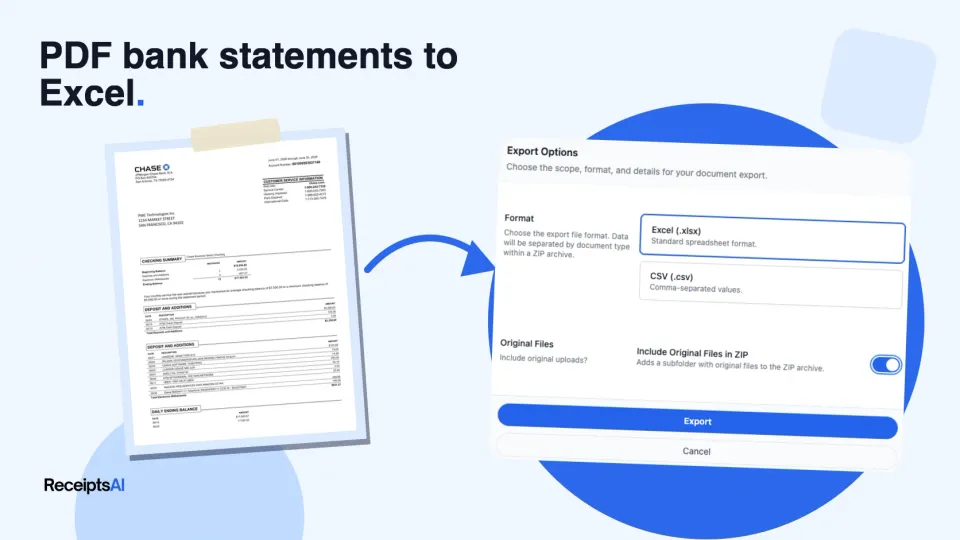
ReceiptsAI is one option in that category. It can accept PDF bank statements, classify transactions, and export the categorized data to Excel or CSV, which helps when the bottleneck is not just conversion but also handling transaction data across a bookkeeping workflow.
How to choose
- Solo bookkeepers with a few clean statements: Excel Power Query is usually enough if the PDFs are digital and consistent.
- Multi-client firms with repetitive monthly files: Bulk import and automated categorization start to pay off fast because the handoffs shrink.
- Mixed bank formats and scanned files: A dedicated converter or OCR-driven platform is safer than hoping every statement behaves the same.
- Teams that need bookkeeping output, not just rows: Pick a tool that exports to the accounting stack you already use, not one that stops at a spreadsheet.
If you are mapping the broader automation picture, the automating data entry guide is a useful complement because it frames the workflow beyond the PDF itself. The aim is less typing, fewer fixes, and a cleaner path to the next system.
Troubleshooting the Most Common Conversion Errors
When a conversion goes wrong, the symptoms usually point to one of a few familiar causes. A blank import means Excel picked the wrong object. Broken rows usually come from merged cells or wrapped headers. Misread dates and decimal issues show up after the file looks “done,” which is why the fix needs to happen before anyone trusts the totals.
Symptom, cause, fix
- Zero rows returned. The Navigator likely selected the wrong table or page. Preview the file again and choose the actual transaction table before loading.
- Formatting and symbols are corrupted. Currency signs, spaces, and odd separators should be cleaned in Power Query, using Replace Values where needed.
- Data is scattered across multiple tables. Some statements split across pages, so you may need to promote headers, merge tables, or append queries.
- The process is too slow for bulk files. Power Query is fine for smaller jobs, but repetitive volume usually calls for a dedicated tool.

A quick pre-flight check saves more time than any rescue step. Open the PDF, confirm the statement is readable, check whether text can be selected, and look for page breaks that might split the transaction table. If the file is scanned, don't pretend it's digital, send it through OCR first.
If balances don't foot, don't blame Excel first. Check whether the opening and closing rows were trapped in the header or split across pages.
The best troubleshooting habit is simple. Preview before load, verify the right table, and clean the output as if a reviewer will audit every line.
Security Best Practices and Your Final Workflow
The safest monthly routine starts before the import. Store the statement securely, limit who can open it, and back it up before you do any transformation work. If the file contains client banking data, the workflow should assume the statement needs protected handling, not casual sharing.
A repeatable end-to-end sequence
- Receive the statement in a controlled inbox or folder.
- Check whether it's digital or scanned, then decide between Power Query or OCR.
- Import and preview the table before loading anything into the workbook.
- Normalize the fields so dates, balances, and amounts behave like accounting data.
- Validate the totals against the source statement and reconcile the workbook.
- Store the finished file securely with the raw PDF and the cleaned workbook together.
For teams thinking about extraction at the system level, a web scraping API can be relevant as part of broader data automation, but financial statements still deserve stricter controls than generic document capture. The point is to move data safely, not just quickly.
ReceiptsAI also publishes guidance on financial data security, which fits naturally with any workflow that handles bank statements at scale. Its email-forwarding and bank-level encryption approach are relevant if you want fewer manual touchpoints and a tighter chain of custody around uploaded files.
The 90-second recap is straightforward. Use Excel for clean digital PDFs, use OCR when the statement is image-only, normalize the fields before you trust the output, and switch to bulk automation when repetition starts eating the close. If you want a single workflow that reduces manual entry and keeps PDF bank statements moving into Excel with less cleanup, try ReceiptsAI on your next statement batch.