
You've got a PDF open, a deadline coming up, and a spreadsheet waiting for clean rows. The problem is familiar. A bank statement looks readable on screen, but the moment you try to use that data for bookkeeping, reconciliation, or import into accounting software, the PDF turns into a brick wall.
If you only need a few values once, manual copy-paste might be enough. If you're dealing with receipts, invoices, or monthly statements, that approach gets old fast. Free conversion methods can help, but they don't all fail in the same way. Financial documents are where the cracks show.
Table of Contents
- Why You Need to Convert PDF Data to CSV
- Choosing Your Free PDF to CSV Conversion Method
- How to Use Online Converters for Quick Conversions
- Mastering Desktop and Manual Conversion Workflows
- Fixing Common Problems After Conversion
- When to Use an Automated Alternative for Bookkeeping
Why You Need to Convert PDF Data to CSV
A PDF is good at preserving layout. That's exactly why it's bad for bookkeeping. The document shows totals, dates, merchants, taxes, and line items, but it doesn't hand those values to Excel, Google Sheets, or your accounting system in a clean structure.

PDFs are readable but not usable
This problem is bigger than one bad statement export. Over 2.5 billion PDF files are created daily worldwide, and the inability to convert PDF tables directly into CSV without manual work leads to an estimated 15–20% increase in bookkeeping time per month for small business owners, according to Adobe's overview of PDF to CSV conversion.
That lines up with what bookkeepers see in practice. The data exists, but it's trapped in a format built for viewing, not reuse. Every receipt packet, supplier invoice, and bank statement becomes another round of retyping, checking, and fixing.
Practical rule: If you can't sort, filter, or import the data, the document isn't ready for bookkeeping yet.
CSV is what your bookkeeping workflow actually needs
A CSV file strips away the presentation layer and keeps the part that matters. Rows. Columns. Values you can import, match, summarize, and audit. That's why CSV remains the practical format for moving data into spreadsheets and finance workflows.
Once the data is in CSV, you can do useful work immediately:
- Import transactions into a spreadsheet: Review expenses, build pivot tables, or prep a month-end file.
- Load data into accounting software: Many systems accept CSV imports more easily than PDF attachments.
- Standardize records across vendors: One supplier sends polished invoices, another sends scanned copies. CSV gives you one working format.
- Share clean data with others: A bookkeeper, owner, or analyst can all work from the same structured file.
If your next step is spreadsheet cleanup or analysis, Tutorial AI's Google Sheets guide is a useful refresher for getting the converted file into Sheets without introducing new formatting issues.
The core skill isn't just learning how to convert PDF to CSV for free. It's knowing which method produces data you can trust once the file lands in your books.
Choosing Your Free PDF to CSV Conversion Method
Free conversion methods fall into a few distinct camps. Some are quick but fragile. Some give you more control but take patience. The best option depends less on price and more on what kind of PDF you're holding.

What each free method is good at
Online converters are often the first option tried. They're fine for one-page, non-sensitive, text-based PDFs. Upload, choose CSV, download. That's the appeal. The problem is that they usually treat every document as a generic table.
That's where financial records start falling apart. Standard free converters often break invoice line items into fragmented rows because they fail to “understand invoice structure rather than treating the document as a generic table,” as noted in Tabledrip's review of PDF to CSV converters. For bookkeeping, that difference matters. One broken line item can throw off quantities, taxes, and totals.
Spreadsheet copy-paste workflows still have a place. They're slow, but for a short bank table or a clean report, they can be accurate enough. You get eyes on the data, which helps catch mistakes before import.
Desktop tools sit in the middle. They give you table selection control and avoid uploading sensitive files to a random website. They're often the better choice when privacy matters or when online converters keep mangling the layout.
Scripts and technical workflows are powerful if you know Python or similar tools. They make sense for repeat jobs, consistent statement formats, or bulk processing. If you're evaluating document automation more broadly, this overview of intelligent document processing helps frame why some tools extract text while others extract actual business data.
Generic table extraction works best on generic tables. Receipts, invoices, and bank statements are not generic tables.
Comparison of free PDF to CSV conversion methods
Comparison of free PDF to CSV conversion methods
| Method | Best For | Handles Scanned (OCR) | Security | Effort Level |
|---|---|---|---|---|
| Online converters | Quick one-off conversions of simple PDFs | Sometimes, often limited | Lower if the file is sensitive and uploaded to a third party | Low |
| Spreadsheet software (copy-paste/import) | Small tables and manual review | Usually weak unless OCR happened earlier | Higher, since you control the file locally | Medium |
| Desktop extraction tools | Native PDFs where you need table control | Limited unless paired with OCR | Higher than browser tools | Medium |
| Programming scripts | Repeated workflows and batch jobs | Possible with extra OCR steps | High if run locally | High |
The shortcut is simple. If the PDF is clean and low risk, start with an online converter. If it contains financial records you can't afford to misread, move quickly to a workflow with more control.
How to Use Online Converters for Quick Conversions
Online tools are the fastest way to convert PDF to CSV for free when the document is simple and you need an answer now. For a clean statement export or a straightforward table in a report, they can save time.

The fast workflow that works for simple PDFs
The usual process is short:
- Open the converter in your browser.
- Upload the PDF.
- Choose CSV as the output format.
- Run the conversion.
- Download the CSV and inspect it before importing anything.
That last step matters more than people think. A file can download successfully and still be wrong. The rows may look fine at a glance, but dates can shift, descriptions can split, and totals can land under the wrong header.
If you need a browser-based option and want something presented around document conversion rather than a pure table toy, Secure document conversion is one example of the kind of tool worth evaluating before you upload anything sensitive.
Where online tools start breaking down
The biggest trade-off is privacy. Uploading bank statements, receipts, or customer invoices to a free third-party tool may not fit your security standards, even if the tool itself is convenient. That's a business decision, not just a technical one.
The second problem is reliability. Free tools commonly impose file size limits, often in the 10–50 MB range, and they struggle with inconsistent multi-page headers. Those issues cause data truncation in approximately 40% of bulk processing attempts, and for complex scanned receipts, accuracy can drop below 65%, based on benchmark details summarized in this YouTube walkthrough on PDF to CSV issues.
That's why many experienced users fall back to an intermediate workflow. Convert the PDF to Excel first, check the sheet structure, then save as CSV. It's less elegant, but it often preserves table logic better than a direct CSV export.
A quick demo helps if you haven't used browser converters before:
Use online converters when speed matters more than precision and when the document isn't confidential. Don't use them blindly for expense reports, supplier invoices, or scanned statements you'll rely on for the books.
Mastering Desktop and Manual Conversion Workflows
When free web tools keep failing, desktop and manual methods usually give you better odds. They're slower up front, but they let you control the extraction instead of hoping a website guesses right.
Start by checking whether the PDF is native or scanned
Before touching any tool, test the PDF. Try selecting text with your cursor. If you can highlight the table contents normally, it's probably a native PDF with a text layer. If the whole page behaves like one image, it's a scanned PDF.
That distinction is the main technical bottleneck in free conversion. Tools without OCR fail to identify column delimiters in 60–70% of scanned financial documents, which causes output to collapse into a single column, according to EditoraPDF's explanation of PDF to CSV conversion limits.
If all your data lands in column A, the problem usually started before the CSV export. The PDF wasn't machine-readable.
For scans, OCR isn't optional. You need one step to turn the image into readable text, then another step to detect the table structure. Skip the first step and most free tools will give you a mess.
Using desktop table extraction tools
For native PDFs, tools like Tabula can still do solid work. They're not magic, but they give you control over the table area and extraction mode.
A practical workflow looks like this:
- Open the PDF in the desktop tool: Start with one page, not the whole file.
- Draw a selection around the table: Be precise. Extra page whitespace often creates junk columns.
- Test both extraction modes if available: Some tables respond better to lattice-style detection, others to stream-style parsing.
- Preview before export: If the preview is already broken, the CSV will be worse.
- Export to CSV only after the preview looks stable: Then review the output in Excel or Sheets.
Desktop tools are useful when confidentiality matters. They keep the file on your machine and let you correct table boundaries manually. That's often enough for bank statements generated directly from a banking portal.
If your wider process also includes storing receipts and statements in a searchable way, this guide to a digital filing cabinet and receipt scanning tools is relevant because extraction problems often start with poor file organization and inconsistent scans.
Manual spreadsheet workflows that still work
Manual import isn't glamorous, but for some PDFs it's the most dependable free option.
Try this sequence:
- Open the PDF and copy only the table area you need.
- Paste into Excel or Google Sheets.
- Remove blank rows, repeated headers, and subtotal lines.
- Use Text to Columns or split functions to separate merged values.
- Save or download as CSV.
For stubborn files, the PDF-to-Excel-to-CSV path often works better than direct conversion. The spreadsheet step gives you one checkpoint to inspect structure before locking the file into plain-text CSV.
This approach won't rescue a bad scan by itself. But for native PDFs, it often beats a one-click converter because you can stop and fix problems before they spread into the final file.
Fixing Common Problems After Conversion
A bank statement can look fine in the converter preview and still break the moment it lands in CSV. Dates shift formats, debits lose their minus signs, and repeating statement headers get sorted in with real transactions. That is the part free tools rarely warn you about. For bookkeeping, cleanup decides whether the file is usable.

Clean the structure first
Fix layout before values. If the rows are wrong, every formula, filter, and import rule built on top of them will be wrong too.
Start with the mistakes that cause the biggest bookkeeping problems:
- Everything lands in one column: Use Excel's Text to Columns or split functions in Sheets. Test comma, tab, semicolon, and fixed-width options.
- Headers repeat every page: Remove statement headers, page numbers, and subtotal lines before sorting or deduplicating.
- One transaction becomes two rows: Check descriptions beside the amount column. Wrapped merchant names and invoice line items often split apart during extraction.
- Columns shift left or right: This usually traces back to merged cells, narrow statement layouts, or balance columns that the converter misread.
- Opening and closing balances sit with transactions: Pull those rows out early so they do not get imported as spend or income.
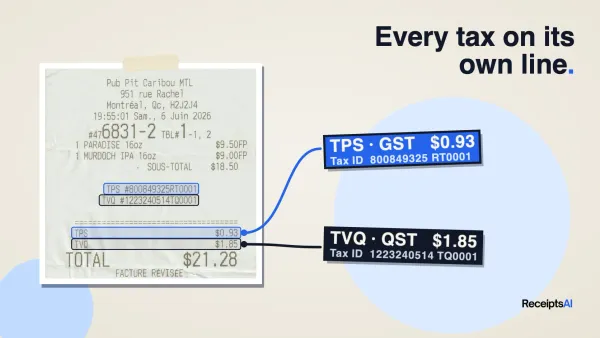
For receipts and invoices, I check tax, subtotal, and total together before doing anything else. If those three fields are already misaligned, the rest of the file usually needs manual repair.
Match the number of real records in the PDF to the number of rows in the CSV before import. On financial documents, row count errors are one of the fastest ways to create bad books.
Then fix values that look right but import wrong
After the table structure holds, clean the fields that accounting software tends to reject or misread.
- Trim extra spaces: Use
TRIM()so vendor names and reference numbers match cleanly. - Convert amounts from text to numbers: Remove currency symbols or stray apostrophes if your import target requires plain numeric fields.
- Standardize dates: Pick one format and apply it across the whole file. Mixed date formats are common in multi-page statements.
- Restore debit and credit signs: Some converters drop parentheses or minus signs, which can flip an expense into income.
- Check blanks against the PDF: Missing vendor names, invoice numbers, or totals should be verified from the source document, not guessed.
- Watch for leading zero loss: Account codes, invoice IDs, and ZIP codes often get reformatted automatically in spreadsheets.
This is also where duplicate transactions show up. A converter may repeat the last line of one page at the top of the next, especially on statements with running balances. Sort by date and amount, then compare neighboring rows carefully before deleting anything.
If you send cleaned CSV files into bookkeeping platforms on a regular schedule, good accounting software integration practices matter because import rules often fail on field mapping, number formatting, and date consistency even after extraction is fixed.
The practical test is simple. Each row should still represent one real financial event, with the right date, payee, amount, and document context. If that standard takes too long to reach by hand, the free conversion did not save time.
When to Use an Automated Alternative for Bookkeeping
Free methods are fine until cleanup becomes the primary job. That usually happens with receipts, invoices, and scanned statements. The issue isn't getting a CSV file. The issue is getting a CSV file that still reflects the original financial document.
The tipping point is cleanup time
Modern AI-powered PDF-to-CSV converters now achieve over 90% accuracy when extracting tabular data from scanned bank statements and receipts, compared with 60–70% accuracy for traditional OCR-based tools. For businesses managing high document volumes, that shift can reduce paperwork time by up to 40%, according to Quadratic's summary of AI PDF to CSV extraction.
That difference matters most when you need more than raw text. A bookkeeper needs merchant names, dates, taxes, totals, and line items in the right places. A forensic accountant needs consistency across many files. A small business owner needs to stop spending evenings correcting broken exports.
What specialized tools do differently
Specialized platforms handle financial documents differently from generic converters. They don't just look for table borders. They try to interpret the structure of receipts, invoices, and statements as financial records.

That changes the workflow in a few important ways:
- Document type matters: A receipt isn't treated like a generic report table.
- Key fields are extracted directly: Merchant, date, tax, total, payment details, and line items can be pulled into structured output.
- Bulk processing becomes realistic: You stop fixing one document at a time.
- Review shifts from transcription to exception handling: That's a better use of bookkeeping time.
One example is ReceiptsAI, which accepts receipts, invoices, bank statements, PDFs, and spreadsheets, extracts financial data, and supports CSV export as part of a bookkeeping workflow. That kind of tool makes sense when free conversion is still possible, but no longer economical because of the cleanup work after every upload.
If you only convert a PDF once every few months, stay free. If you're processing recurring financial documents and manually repairing rows every week, the free method is costing more than it's saving.
If you're done fighting broken invoice rows and one-column CSV exports, ReceiptsAI is worth trying for financial documents that need to end up clean, searchable, and ready for bookkeeping. It's built for receipts, invoices, statements, and bulk document handling, so you can move from extraction to review instead of spending your time retyping or rebuilding spreadsheets.