How to Forward Emails in Gmail Automatically: Step-by-step

Gmail can automatically forward new emails to another address after you add and confirm a forwarding destination. This step-by-step guide will help you navigate Gmail, so you can set up automatic forwarding.
What you need before you start
- Access to the Gmail account you want to forward from.
- ReceiptsAI users: your private ReceiptsAI forwarding address.
- A few minutes to complete Google security verification.
Choose the email address Gmail should forward to
Before opening Gmail settings, decide which email address should receive forwarded messages. If you are setting this up for ReceiptsAI, copy your private ReceiptsAI forwarding address from your account and use that exact address as the Gmail forwarding destination.
Step 1
Open Gmail settings
In Gmail, click the gear icon in the top-right corner. When the quick settings panel opens, select See all settings to open the full Gmail settings menu.
Step 2
Add the forwarding email address
In the settings menu, open the Forwarding and POP/IMAP tab. Under Forwarding, click Add a forwarding address. Gmail will open a popup where you can paste the email address that should receive forwarded messages. After entering the address, click Next. For ReceiptsAI, this is your private forwarding address.
Step 3
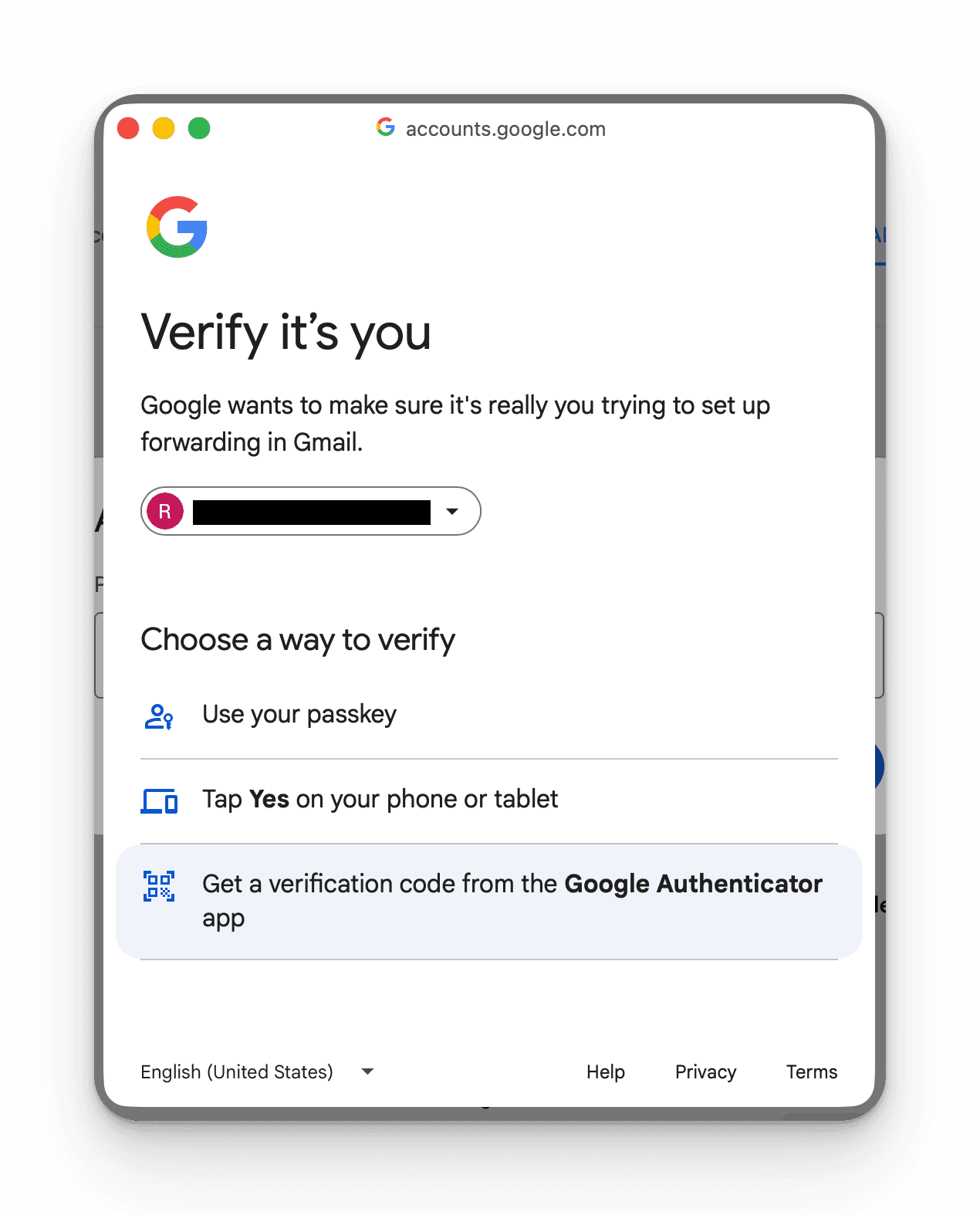
Verify the forwarding request with Google
Google will ask you to verify your identity before the forwarding address can be added. Complete the verification with the method available on your account, such as a passkey, phone prompt, or security code.
Step 4
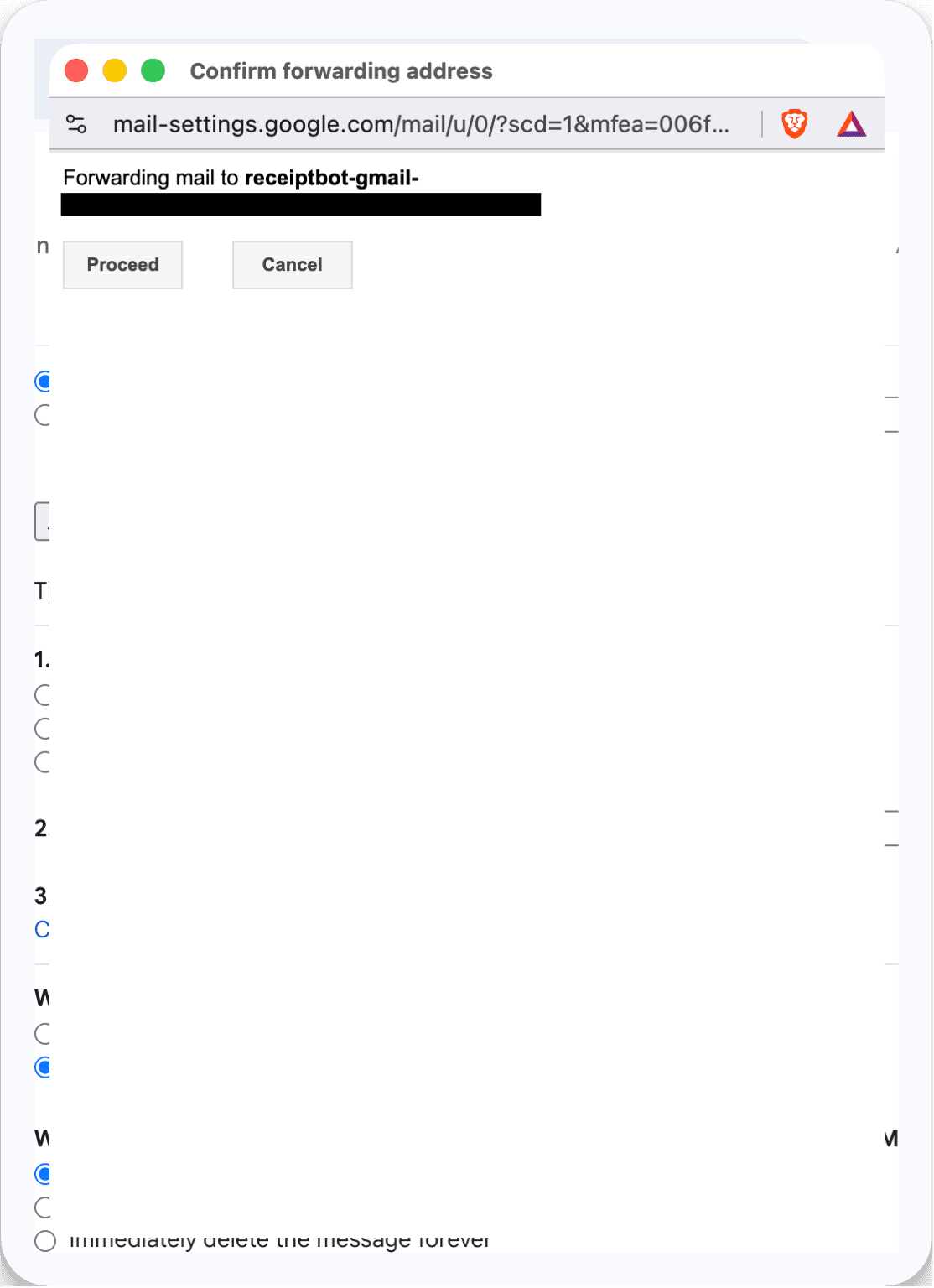
Confirm the forwarding address
After verification, Gmail will ask you to confirm that you want to add the forwarding address. Review the destination carefully, then click Proceed to continue.
Step 5
Approve the confirmation email
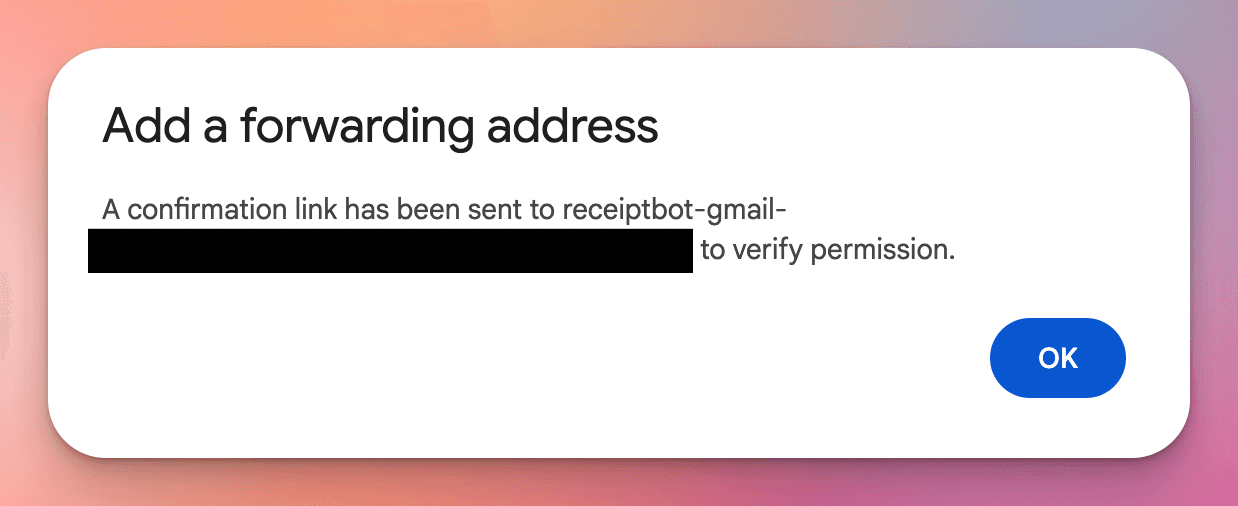
After you confirm the forwarding address, Gmail sends a confirmation email to the receiving address. The owner of that receiving inbox must approve the request before Gmail can start forwarding.
ReceiptsAI users should return to the ReceiptsAI app and follow the confirmation flow there. If you are forwarding to a different address, open that inbox, find the Gmail confirmation email, and accept the request before continuing.
Step 6
Finish the setup
After the forwarding address is approved, return to Gmail and make sure forwarding is enabled for the destination you added. Gmail may ask you to confirm one last time that the forwarding addresses are correct.
ReceiptsAI users should open the email forwarding settings in ReceiptsAI, click Open Gmail Confirmation Link, then return to ReceiptsAI and click I have confirmed this in Gmail. From this point on, new forwarded Gmail receipts can be captured and prepared for review or export.
Gmail forwarding is now connected to ReceiptsAI
Once ReceiptsAI confirms the Gmail setup, email forwarding is connected. You can now automatically send receipts, invoices, and statements to ReceiptsAI so they can be uploaded, extracted, and processed without manual data entry.
Gmail auto forwarding tips
Forward only what you need
If you do not want every Gmail message forwarded, use Gmail filters to forward only matching emails. For ReceiptsAI, focus on receipts, invoices, and bank statements.
Test with one new receipt
Send or receive a fresh receipt after setup to confirm Gmail forwarding and ReceiptsAI processing are working.
Keep the address private
Your ReceiptsAI forwarding address is unique to your account, so do not publish it or share it outside your workflow.
Gmail forwarding FAQ
How do I auto forward emails in Gmail?
Open Gmail settings, go to Forwarding and POP/IMAP, add a forwarding address, verify it, and enable forwarding for new incoming messages.
How do I forward emails in Gmail?
To forward one email manually, open the message and choose Forward. To forward new emails automatically, add and verify a forwarding address in Gmail settings.
How do I forward multiple emails in Gmail?
Gmail does not offer a simple native bulk-forward button for selected messages. You can forward messages one by one, use filters for future emails, or use Google Workspace tools where available.
How do I set up auto-forward in Gmail for specific emails?
Create a Gmail filter using sender, subject, keyword, or attachment rules, then choose your verified forwarding address as the filter action.
How do I bulk forward emails in Gmail?
For existing emails, Gmail bulk forwarding is limited. For future emails, the best approach is to create filters that automatically forward matching messages.
Does Gmail auto forwarding send old receipt emails?
No. Gmail forwarding applies to new emails after forwarding is enabled. Forward older receipt, invoice, or statement emails manually if you want ReceiptsAI to process them.
Should I forward every Gmail email to ReceiptsAI?
Most users should forward only financial emails such as receipts, invoices, and bank statements. This keeps your ReceiptsAI workspace focused and avoids sending unrelated messages.
Where do I find my ReceiptsAI forwarding address?
Open your ReceiptsAI account and copy the private forwarding address from the email forwarding settings. Use that exact address when Gmail asks for the forwarding destination.