
How to Escape Quickbooks: New AI Tools for Better Books


If you run a small business or lead ops for a lean team, QuickBooks often turns into the place where receipts go missing and decisions get delayed. Receipts sit in inboxes and glove compartments, vendor names show up three different ways, categories shift month to month, and reconciliation becomes a late-night clean-up job. Even when you’re “keeping up,” you’re still doing a lot of manual sorting, renaming, and guessing, especially with multiple cards, locations, and reimbursable spend.
This article lays out a practical way to “escape QuickBooks” without lowering your bookkeeping standards. You keep what matters (tax-ready accounting, a stable chart of accounts, and a real close process) while moving the daily grind (receipt capture, data extraction, coding suggestions, documentation) into tools built for that job. The goal is a workflow you can run weekly, produce audit-friendly support, and hand to your accountant as clean exports instead of screenshots, forwarded emails, and Slack threads.
- Cut manual data entry by capturing receipts once and letting AI extract the key fields (vendor, date, total, tax, currency).
- Standardize vendor naming and categories so reports stop changing every month.
- Set a repeatable weekly “close-lite” routine that prevents month-end pileups.
- Improve tax readiness with consistent receipt attachments and clear expense notes.
- Catch duplicates and missing documents before they turn into reconciliation problems.
- Export clean CSV/Excel packages for your accountant or for posting into your ledger of choice.
Step-by-Step Core Workflow
1) Replace “Receipt Chasing” With a Single Capture System
What to do
Pick one intake path for every receipt and invoice, and enforce it. The objective is simple: stop letting documents scatter across email, texts, paper piles, and shared drives.
A simple setup:
- One intake inbox: A dedicated email address where vendor invoices and receipts get forwarded.
- Mobile capture: Take photos of paper receipts immediately (parking, meals, supplies).
- Shared upload link/folder: For team members who aren’t finance-minded.
- Rules: Every purchase needs a receipt attached within 24–48 hours.
Tools like ReceiptsAI can fit well as the documentation layer here: you upload receipts, invoices, and statements, and the output is structured records you can review—rather than just a growing folder of images.
Why it matters
Most bookkeeping problems don’t start in the ledger. They start with missing source documents. Fix capture and you reduce:
- “What was this charge?” detective work during reconciliation
- Missed deductions at tax time
- Back-and-forth with employees and vendors when everyone’s forgotten the details
Common mistake to avoid
Letting multiple capture habits continue. If some receipts go to email, others to Slack, and others to a folder, you’ll always have gaps and duplicates.
Practical checklist
- [ ] Create one “Receipts/Invoices Intake” email and share it with the team
- [ ] Set a company rule: no reimbursements without a receipt attached
- [ ] Post a one-page SOP: “How to submit receipts in 30 seconds”
- [ ] Do a weekly scan for uncategorized/unmatched items
Mini-example:
A two-location café has managers texting photos to the owner, emailing PDFs to an admin, and dropping paper receipts in a drawer. One intake system replaces all three, cuts duplicate submissions, and makes a weekly review realistic.
Next step: Create the intake email today and message your team the new rule. Don’t optimize anything else until this is in place.
---
2) Use AI Extraction to Turn Receipts Into Consistent Data
What to do
Once intake is centralized, convert each receipt into consistent fields:
- Vendor/merchant name (normalized)
- Transaction date
- Total amount
- Tax amount (when present)
- Currency
- Payment method (if available)
If you also deal with vendor bills and multi-page PDFs, consider separating “receipt capture” from “invoice extraction.” For example, ReceiptsAI’s AI invoice scanner is designed to extract invoice details like invoice numbers, PO references, supplier details, taxes, and line items—and export the results to Excel or CSV—so you can move invoice data into your workflow without retyping it.
Why it matters
QuickBooks (and most accounting systems) gets painful when you’re doing “bookkeeping by memory.” Structured receipt data lets you:
- Match transactions faster
- Code more consistently
- Search by vendor/date/amount in seconds
- Produce audit support without digging through inboxes
Common mistake to avoid
Treating extraction as perfect and skipping review. AI reduces the work, but you still need a quick check, especially for:
- Tips and taxes (restaurants, hospitality)
- Split tender receipts
- Multi-page invoices
- Foreign currencies
Practical checklist
- [ ] Confirm date and total match the receipt image
- [ ] Confirm vendor normalization (e.g., “AMZN Mktp” → “Amazon”)
- [ ] Flag receipts with missing tax fields if your jurisdiction expects tax details
- [ ] Add a short note for unusual expenses (client meeting, emergency repair)
Mini-example:
A freelance videographer buys gear from “B&H Photo,” “BH PHOTO VIDEO,” and “B H Photo.” Vendor normalization collapses these into one vendor, which makes spend tracking and vendor reporting cleaner.
Next step: Run extraction on the last two weeks of receipts and spot-check totals, dates, and vendor names. Fix the patterns you see early.
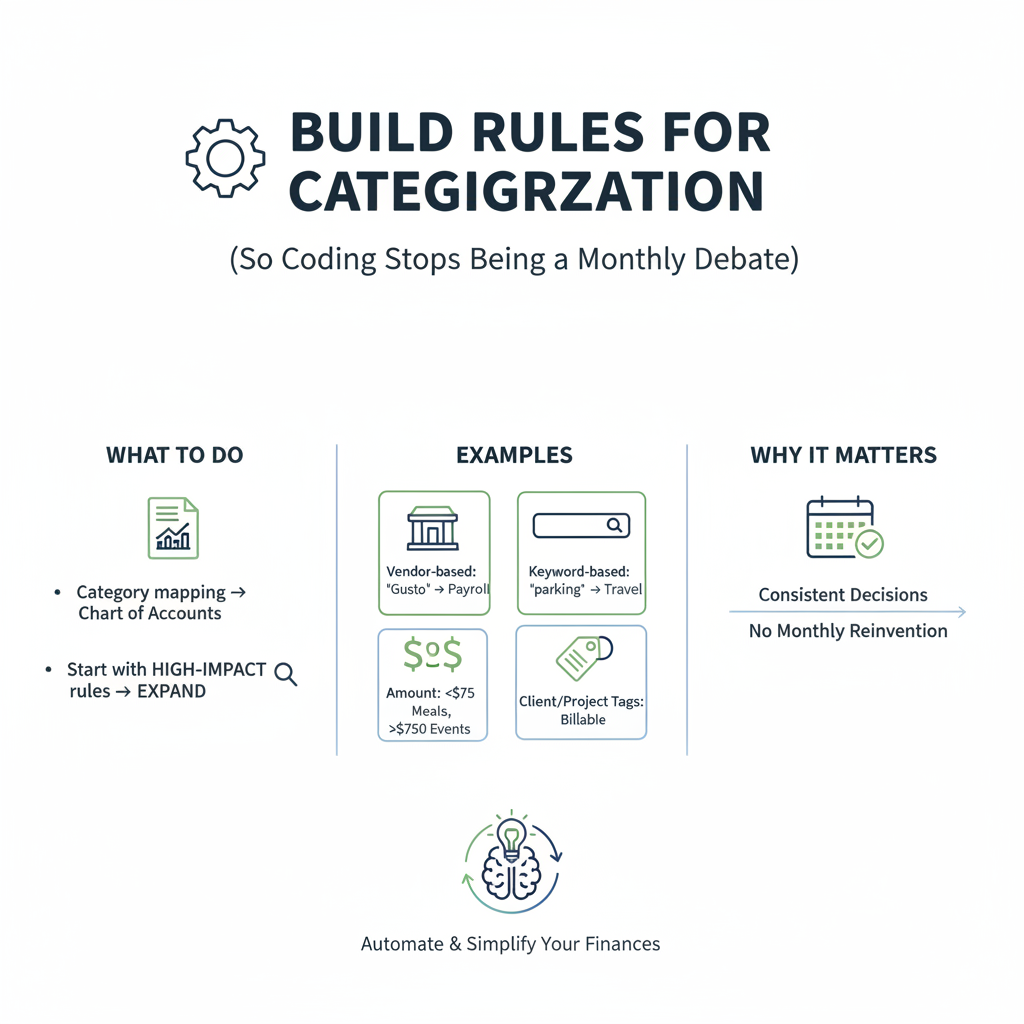
3) Build “Rules” for Categorization
What to do
Create a category mapping approach that mirrors your chart of accounts but is easy to apply day to day. Start with rules that cover most of your spend first, then expand.
Examples of high-impact rules:
- Vendor-based: “Gusto” → Payroll Fees; “Google Ads” → Advertising
- Keyword-based: “parking” → Travel; “UPS/FedEx” → Shipping
- Amount thresholds: Under $75 meals → Meals; larger catering invoices → Events/Marketing (depending on your setup)
- Client/project tags: If you bill back expenses, tag them at intake
In practice, category rules and bank-statement categorization features (where available) help you keep decisions consistent: you’re not reinventing the coding logic every month.
Why it matters
Category drift makes your P&L unreliable. If the same vendor lands in three categories, your reporting turns into noise. Consistent coding improves:
- Budgeting (you can trust “software” as a number)
- Margin analysis (shipping, subcontractors, COGS vs overhead)
- Tax prep (fewer reclasses and cleanup later)
Common mistake to avoid
Over-building the chart of accounts. More categories usually means more confusion, not better insight. Keep the structure stable and use tags/notes for detail.
Practical checklist
- [ ] Identify your top 15 vendors by spend
- [ ] Assign a default category to each top vendor
- [ ] Add 5–10 keyword rules for long-tail purchases
- [ ] Define 3–5 “special handling” buckets (Owner draw, Reimbursable, CapEx)
- [ ] Document one sentence per category: what goes in / what does not
Mini-example:
A small logistics company miscodes fuel, vehicle repairs, and tolls. Simple vendor rules (“Shell/Exxon” → Fuel; “Jiffy Lube” → Repairs; “EZ-Pass” → Tolls) stabilize the P&L and make cost-per-route review possible.
Next step: Build default categories for your top vendors this week. That alone reduces most of the back-and-forth.
4) Match Receipts to Bank/Card Transactions (Weekly, Not Monthly)
What to do
Run a weekly matching cycle:
1. Pull in the week’s bank/card transactions (bank feed or exported statement).
2. Match each transaction to a receipt record by amount/date/vendor.
3. Fix exceptions immediately while people still remember what happened.
Even if you stop using QuickBooks as the daily workspace, you still need bank truth. Matching is how you ensure:
- Every expense is real
- Every real expense is documented
- Duplicates don’t get booked
Why it matters
Weekly matching turns month-end into a review instead of a rescue mission. Operationally, that means:
- Fewer reimbursement disputes
- Faster visibility into cash burn
- A cleaner close for your accountant
Common mistake to avoid
Trying to match without standardization. If vendor names are messy and key fields aren’t verified, matching turns into guesswork.
Practical checklist
- [ ] Sort unmatched transactions by largest amount first
- [ ] Search receipt records by amount and a tight date range
- [ ] If no receipt exists, request it the same day
- [ ] Flag recurring charges without receipts (subscriptions) for a separate “standing documentation” folder (invoice + terms)
Mini-example:
A three-person agency runs ads across multiple platforms. Weekly matching catches a duplicate tool subscription in week two, not at month-end, so it can be canceled before it quietly lingers.
Next step: Put a 30-minute block on your calendar every week for matching. Consistency matters more than the tool.
5) Handle Exceptions: Reimbursements, Splits, and Capital Purchases
What to do
Write a simple exception playbook and use it every time. Most messy books come from the same edge cases repeating.
A) Employee reimbursements
- Require receipt + business purpose note
- Tag as “Reimbursable” and link to the employee name
- Pay reimbursements on a consistent cadence (e.g., biweekly)
B) Split receipts (personal + business, or multiple categories)
- Split at intake: allocate amounts across categories/projects
- Add a note explaining the split (so you can defend it later)
C) Capital expenditures (CapEx)
- Flag equipment/furniture purchases over your threshold
- Keep vendor invoice + proof of payment + warranty docs
- Don’t auto-expense if it should be capitalized (confirm with your accountant)
The key is that the context (notes, tags, and the source document) stays attached to the transaction, instead of getting buried across email threads.
Why it matters
Exceptions are where accuracy and compliance usually break. A consistent process improves:
- Audit readiness (you can explain splits and reimbursements)
- Correct tax treatment (CapEx vs expense)
- Project profitability (reimbursables don’t disappear into overhead)
Common mistake to avoid
Mixing reimbursement logic with normal expenses. If reimbursements aren’t clearly tagged and documented, you’ll misclassify, double-count, or miss bill-backs.
Practical checklist
- [ ] Create tags: Reimbursable, Personal portion, CapEx, Client name/project
- [ ] Set a CapEx threshold and share it internally
- [ ] Require a one-line business purpose note for meals/travel
- [ ] Review exceptions weekly (they pile up fast)
Mini-example:
A field services business buys a $1,800 tablet kit. If it’s auto-expensed, your monthly profit swings and depreciation never gets tracked. Flagging it as CapEx keeps reporting stable and tax treatment consistent.
Next step: Decide your CapEx threshold and write it into your receipt SOP. If the team doesn’t know the rule, they can’t follow it.
Validation and Quality Control
6) Run a “Pre-Close QC” Routine: Duplicates, Missing Receipts, and Weird Tax Fields
What to do
Before you export anything (weekly or monthly), run a short QC pass.
Duplicate checks
- Same vendor + same total + same date (common with re-sent email receipts)
- Same image uploaded twice (common with team submissions)
Missing receipt checks
- Transactions above a threshold without an attachment
- Higher-risk categories (meals, travel, contractor spend)
Tax field sanity
- Tax missing where it should exist (local vendors)
- Tax present where it shouldn’t (some online vendors)
If your receipt tool supports search and duplicate detection, QC becomes a quick review step instead of a scavenger hunt.
Why it matters
QC prevents “garbage-in reporting.” It reduces:
- Overstated expenses (duplicates)
- Unsupported deductions (missing receipts)
- Sales tax/VAT confusion that creates cleanup work for your accountant
Common mistake to avoid
Waiting until tax time to do QC. By then, vendors are slower to respond and nobody remembers what the charge was for.
Practical checklist
- [ ] Filter to “unmatched” items and resolve the top 10 by value
- [ ] Filter to “missing attachment” and request docs immediately
- [ ] Scan for duplicate totals at the same vendor in a 2–3 day window
- [ ] Sample-check 10 receipts per month: image ↔ extracted fields
Next step: Add QC to your weekly matching session. It should be a short habit, not a quarterly project.
Export and Downstream Use
7) Export Clean Data for Your Accountant (or Any Ledger) Without Rework
What to do
After receipts are captured, extracted, categorized, matched, and QC’d, export in a format that your accountant can post without rework.
Common export packages:
- CSV/Excel: Date, vendor, amount, tax, category, project/client tag, notes, receipt link/reference
- Receipt archive: A folder or ZIP with filenames that map to the CSV IDs
- Monthly summary: Totals by category and by project (optional, but useful)
If you handle invoices separately, invoice-focused exports can be especially helpful—for example, exporting structured invoice data (including taxes and line items) to CSV/Excel from an invoice scanner tool, then handing that package off for posting and review.
Why it matters
Clean exports change what you’re paying your accountant/bookkeeper for. Less time goes to sorting and chasing, and more time goes to:
- Review and higher-level accuracy checks
- Cash flow and margin questions that actually affect decisions
- Tax planning and compliance confidence
Operationally, month-end becomes:
- Fewer reclassifications
- Faster close
- More reliable P&L and job costing
Common mistake to avoid
Exporting raw, uncategorized data. That doesn’t fix anything. It just relocates the mess.
Practical checklist
- [ ] Confirm every exported line has: date, vendor, total, category, receipt reference
- [ ] Include notes for meals/travel and client reimbursables
- [ ] Export on a schedule (weekly for high-volume, monthly for low-volume)
- [ ] Store exports using consistent month folder names
Next step: Ask your accountant what import format they want (fields + file layout). Build your export to match that, not what’s convenient for you.
Conclusion + Next Step
Escaping QuickBooks doesn’t mean escaping bookkeeping discipline. It means getting the daily work out of a slow, manual workflow and into a system built for fast capture, consistent data, and clean handoffs. Centralize intake, use AI extraction, lock in category rules, match weekly, and run basic QC. That’s the recipe for books you can trust and a close that doesn’t drag on.
Next step: implement the single intake rule this week, then run a one-hour pilot on the last 30 days of spend. Use ReceiptsAI (or a similar AI layer) to organize the documentation and extraction, then build rules for your top vendors. After one cycle, you’ll know where your bottlenecks are and you’ll have a repeatable process that holds up as transaction volume grows.
FAQ
1) Do I need to stop using QuickBooks entirely to benefit from this?
No. Many teams keep QuickBooks (or another ledger) as the system of record, but stop using it as the daily workspace. AI tools like ReceiptsAI can handle document upload, extraction, categorization workflows (via rules), and receipt/statement organization so the ledger becomes a clean destination for posting, not a messy inbox.
2) Is AI receipt extraction reliable enough for tax and audits?
It’s useful for speeding up data entry, but you still need a review step. Tax readiness comes from two things: (1) the receipt image attached to the record and (2) verified key fields (date, vendor, total, tax), plus a business purpose note when needed.
3) What’s the minimum workflow that actually works?
If you want the smallest viable system:
- One intake channel for all receipts/invoices
- AI extraction into structured fields
- Vendor-based category rules for top spend
- Weekly matching + a quick missing-receipt check
That gets you most of the benefit without building a heavy process.
4) How do I handle recurring subscriptions that don’t always have receipts?
Create a “standing documentation” record per subscription: invoice/plan terms, vendor details, and proof of payment method. Then match the recurring bank charge to that record. Review quarterly to catch price changes and unused tools.
5) Will this help if I have multiple cards, locations, or client projects?
Yes. Those setups are exactly where this workflow pays off. Normalized vendors, consistent categories, and project/client tags make reporting by location or job possible without rebuilding the books every month. The key is enforcing one capture system and tagging at intake, not after the fact.